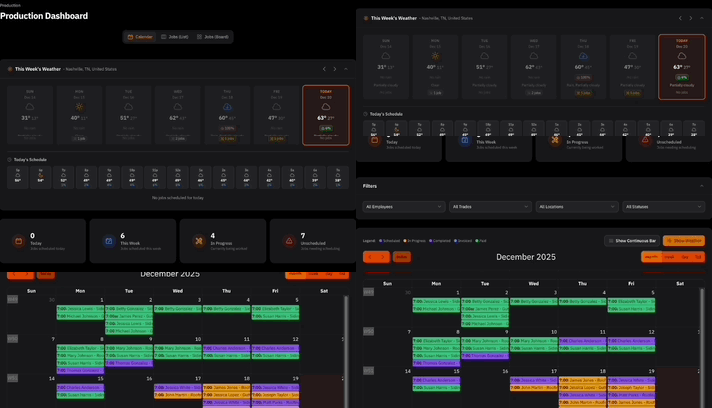

AI is most powerful when it has access to the information that matters most to your business.
That's why we're excited to introduce the ContractorHUB MCP Server, a new way to securely connect ContractorHUB data to AI assistants like Claude Desktop and other MCP-compatible applications.
Instead of manually searching through records, reports, and project information, you can now ask natural-language questions and let your AI assistant retrieve answers directly from ContractorHUB.
What is MCP?
MCP (Model Context Protocol) is an emerging standard that allows AI applications to securely connect with business software and access real-time information.
With the ContractorHUB MCP Server, your AI assistant can interact directly with data stored in your ContractorHUB account, helping you find information faster and make decisions with less manual work.
Think of it as giving your AI assistant secure, permission-based access to the same information you use every day.
What Can You Do With It?
Once connected, your AI assistant can access ContractorHUB tools and data through simple conversational prompts.
For example, you can ask:
"Show me all projects currently in my pipeline."
"Which fleet vehicles are in maintenance status?"
"What vehicles are due for service?"
"Give me a summary of active jobs."
"Help me find project information without navigating through multiple screens."
Instead of clicking through menus and reports, you can simply ask a question and receive an answer in seconds.
Secure, Permission-Based Access
Security remains a top priority. Access to the ContractorHUB MCP Server is managed through secure authorization and access tokens. Users must authenticate through ContractorHUB before an AI application can access company data. This ensures that only authorized users can connect approved AI tools to their ContractorHUB account.
Getting Started
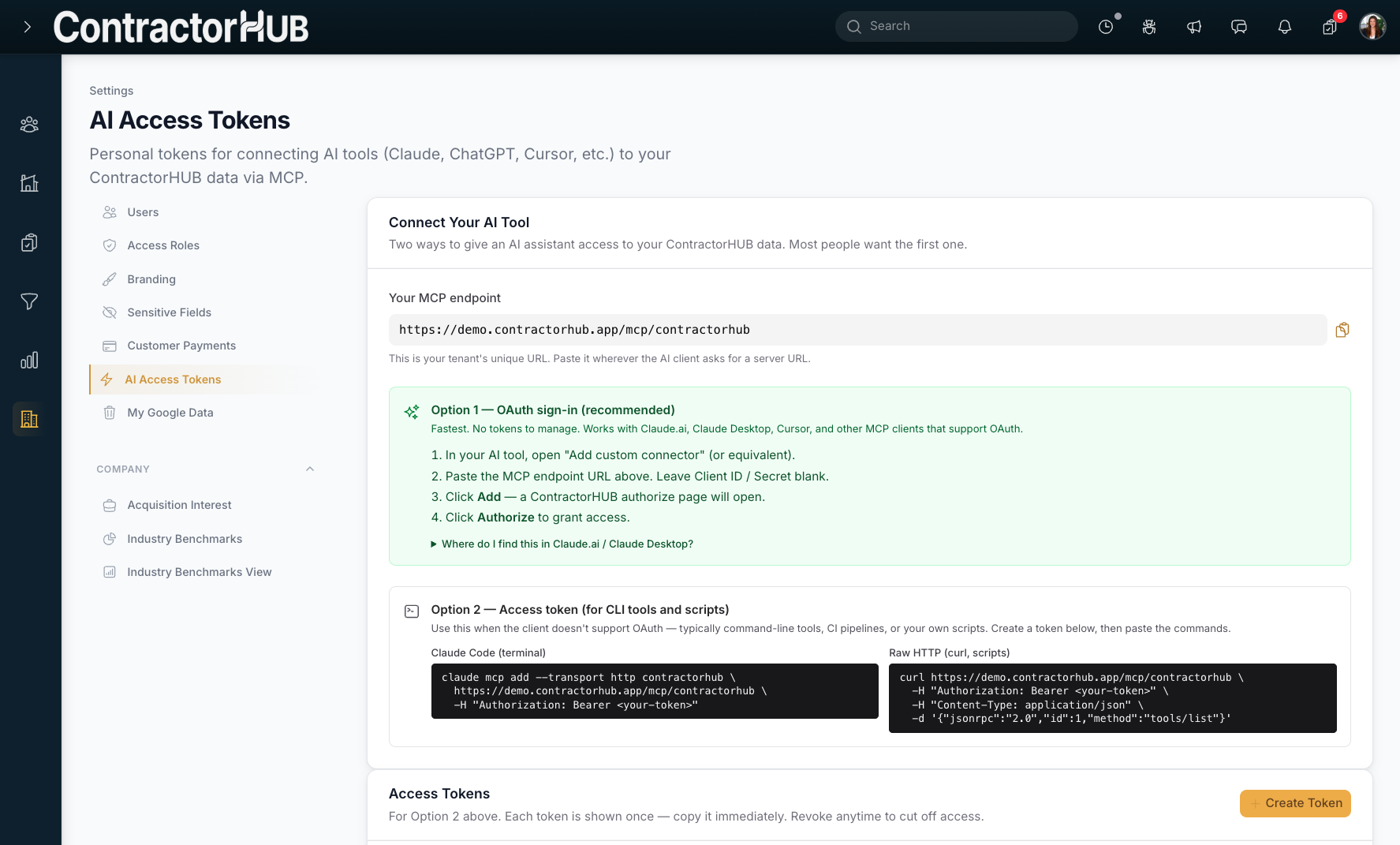
Connecting Claude Desktop to ContractorHUB only takes a few minutes. Watch a video or follow these steps:
Open Settings in ContractorHUB.
Select AI Access Tokens.
Copy your MCP endpoint URL.
Open Claude Desktop and navigate to Settings → Connectors.
Select Add Custom Connector.
Name the connector and paste in your ContractorHUB MCP endpoint.
Click Connect and authorize access through ContractorHUB.
Once connected, you'll be able to interact with your ContractorHUB data directly from Claude using natural-language prompts.
The Future of AI-Powered Operations
The ContractorHUB MCP Server is an important step toward making AI a practical tool for contractors—not just another piece of technology to learn.
By connecting your operational data directly to modern AI assistants, you can spend less time searching for information and more time making decisions that move your business forward.
We're excited to see how customers use MCP to streamline workflows, uncover insights, and get more value from the data already inside ContractorHUB.


